Connect Gemini in a few minutes.
Create a key, paste it once and test the connection. For real student work, use an account or key approved by your school.
Open Google AI Studio
Sign in with the Google account you want to use for the API. For real student work, use a school-approved Google account or an API key provided by your school.
Create an API key
On the API Keys page, create a Gemini API key. New accounts can start on Google’s Free Tier without adding billing.
Google currently states that content on the Free Tier may be used to improve its products, while content sent through the Paid Tier is not. For identifiable student work, use paid API access approved by your school rather than personal free-tier access.
Keep the key private
An API key is a credential. Do not paste it into email, a shared document or a public form. If a school is providing keys, separate keys per teacher make revocation simpler.
The key is used from your browser to call Gemini. There is no separate Grade Drafter AI account or token balance to manage.
Paste it into Grade Drafter
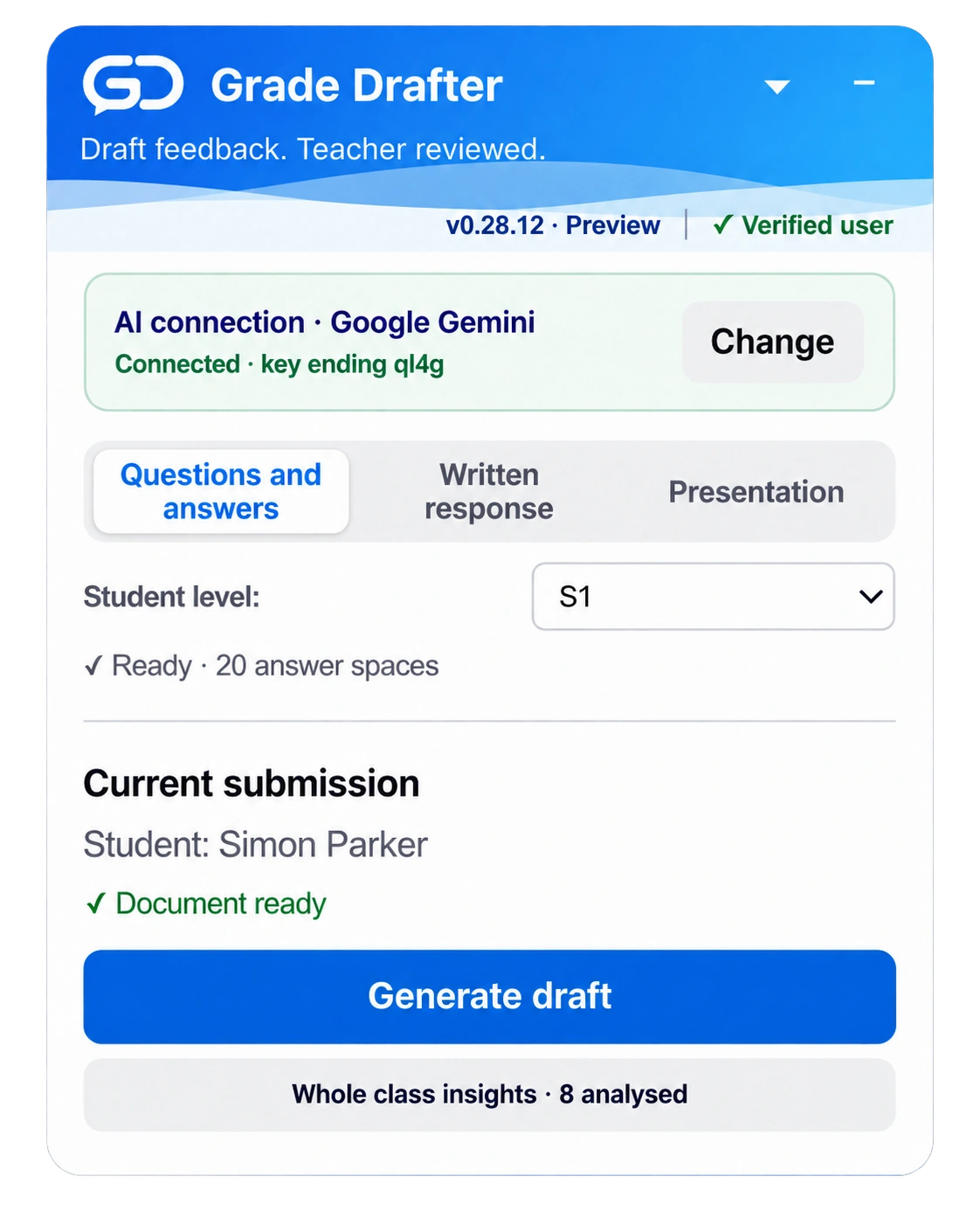
Open the extension, find AI connection · Google Gemini, paste the key and choose Test & save. The key is checked without sending any student work.
What it looks like in Grade Drafter:
Choose Fast or Careful
Fast mode uses Gemini 3.5 Flash-Lite for routine, high-volume grading at the lowest cost. Careful mode uses Gemini 3.8 Flash and is recommended for longer written responses and essay grading, where explanation quality, nuance and partial credit need more judgement. Fast remains the default during the private beta while both modes are tested on real classroom work.